管理成員與訪客

在 Notion 中與他人協作非常簡單。新增成員與您在工作空間中協作,或邀請訪客檢視、評論或編輯特定頁面 💌
跳至常見問題
Note: If you're on the Enterprise plan, the images in this article might look a little different from what you see in Notion. Thanks for your understanding!

Learn more about different types of people in a workspace
Note: On paid plans, you'll be charged per member in your workspace. For more information on plans, go here →
使用電子郵件
若要使用電子郵件新增成員:
前往
設定→人員或成員(取決於您的方案)。前往
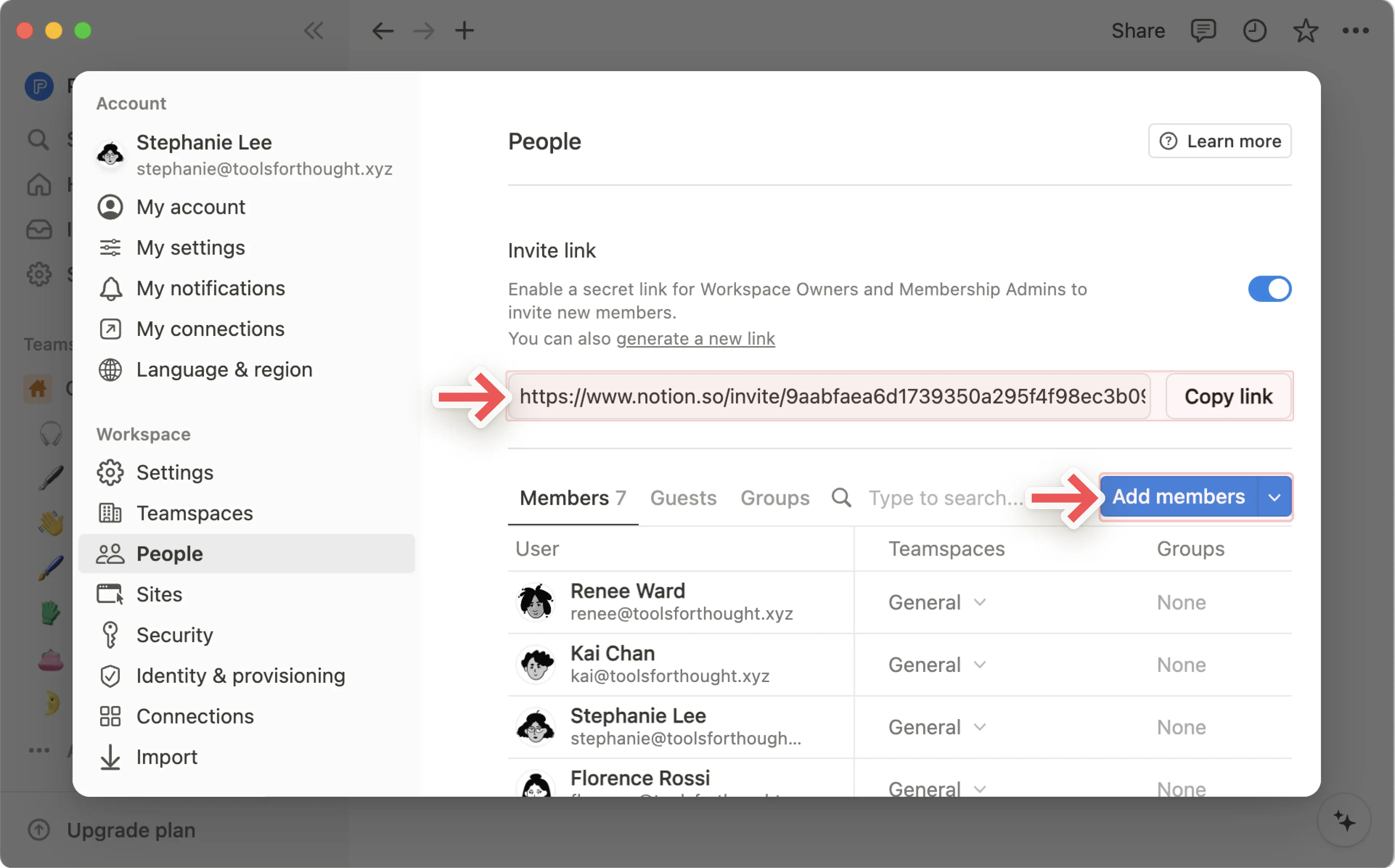
成員分頁。選擇
新增成員並輸入您想要新增之人的電子郵件地址。如果您沒有邀請權限,則會改為看到請求新增成員的選項。從下拉式選單中選擇將他們新增為
工作空間擁有者、成員資格管理員或成員,然後按下邀請。他們會收到一封電子郵件,其中包含登入並加入您工作區的連結。
使用連結
若要透過連結新增成員:
前往
設定→人員或成員(取決於您的方案)。前往
成員分頁。選擇
複製連結將私密連結複製到剪貼簿,並分享給任何您想邀請一起工作的人。當受邀使用者點擊該私密連結時,他們將能自動以付費成員的身分加入您的工作空間,而無需您手動新增他們的電子郵件地址。
如果您不希望能夠透過連結邀請他人加入您的工作空間,請關閉
邀請連結旁邊的開關。
使用允許的網域
如果您在公司使用 Notion,您可以讓任何人都能在以公司電子郵件登入時,自動以成員身分加入您的工作空間。若要進行此設定,工作空間擁有者可以:
前往
設定→設定。在
已允許的電子郵件網域下,輸入任何您想要自動授予存取權限的電子郵件網域,例如您公司的電子郵件網域。您可以在此欄位中新增多個已允許的網域,但您只能新增工作空間成員帳號所屬的網域。
現在,每當有人使用具有這些網域之一的電子郵件登入 Notion 時,他們會在新手引導過程中看到加入您工作空間的選項。如果該使用者加入您的工作空間,他們將成為您工作空間的成員,且您將會依此計費。
變更成員角色
若要變更工作空間中成員的角色:
前往
設定→人員或成員(取決於您的方案)。前往
成員分頁。選取成員角色的下拉式選單,然後選擇
工作空間擁有者、成員資格管理員或成員。

如果您與 Notion Marketplace 顧問合作,可以授予他們限時存取權限,讓他們以臨時成員身分進入您的工作空間。他們將擁有成員層級的存取權限直到失效日期,之後會自動失去存取權限。臨時成員不會佔用付費席位。
若要新增臨時成員:
前往
設定→人員或成員(取決於您的方案)。前往
成員分頁。選取
新增成員並輸入您顧問的電子郵件(地址)。從角色下拉式選單中選取
臨時成員。設定失效日期(最長為從@今天起一年內)。
按下
邀請。
他們會收到一封包含加入工作空間連結的電子郵件。一旦接受,他們就會出現在您的成員列表中,並顯示其失效日期。
待處理請求
發送邀請後,在顧問接受之前,該邀請會顯示為待處理。您可以在「設定」→「成員」中查看並管理待處理的邀請。
延長或移除存取權
管理員可以隨時更新臨時成員的失效日期或移除其存取權:
前往
設定→人員或成員。在列表中找到該臨時成員。
選取其名稱旁的
•••。選擇
編輯到期日或從工作區移除。
Learn about the difference between guests and members here →
來自頁面
請記住,訪客只能新增至個別頁面,無法新增至整個工作區。若要與訪客共用頁面:
前往頁面右上角的「分享」。
輸入您要邀請的訪客電子郵件地址。
從下拉式選單中為該訪客選擇存取層級,然後按一下
邀請。選擇
暫時跳過以確保您是將他們新增為訪客,而非成員。
您的訪客將會收到一封包含頁面連結的電子郵件。如果他們尚未開始使用 Notion,則需要註冊才能存取您的頁面。
Note:
If you’re not able to share a page with a guest, this might be because:
Your workspace has reached its guest limit.
Your workspace or teamspace has prevented guests from being added to the page.
The email domain of the guest you’re trying to share the page with is not an allowed email domain for your workspace.
If you’re on an Enterprise plan and the owner has prevented members from inviting guests to pages, then any people you invite to a page will automatically be added as members. Before you select
Invitein the steps above, you can hover over your guest’s name or email for more information on how that person will be added to the page.
來自訪客的要求
為了讓您更輕鬆地將訪客新增至工作區,Notion 也允許工作區外部的人員要求存取工作區中的特定頁面。此功能適用於除企業方案以外的所有方案,且預設為開啟。
如果您使用的是 Plus 版或商業版,可以關閉此設定。遺憾的是,免費版無法關閉此功能。若要執行此操作:
開啟
設定→安全性。切換關閉
允許來自非成員的頁面存取要求。
一旦訪客提交頁面存取權限要求,頁面創作者的收件匣就會收到通知。頁面創作者可以核准該要求並調整該訪客的存取權限層級,也可以忽略該要求。
Note: When you add someone to a page, they can automatically access all of its sub-pages by default. That being said, you can restrict or expand sub-page permissions!
工作空間成員可以要求將訪客新增至工作空間。此功能僅適用於企業版,且僅有工作空間擁有者可以啟用或停用此功能。
啟用訪客新增與訪客要求
若要允許成員直接將訪客新增至工作空間頁面,工作空間擁有者可以:
前往
設定→安全性。在
成員與訪客分頁中,開啟允許成員邀請訪客至頁面。
若要允許成員要求將訪客新增至工作空間頁面,工作空間擁有者可以:
前往
設定→安全性。在
成員與訪客分頁中,開啟允許成員請求新增訪客。
一旦開啟此功能,成員和工作空間管理員必須先提交請求,才能邀請訪客。工作空間擁有者不受此限,可繼續直接邀請訪客。
Note:
When
Allow members to invite guests to pagesis turned off, nobody except workspace owners can invite guests. Members and workspace admins won’t be able to invite guests, and can instead request to add guests if their workspace allows it.Allow members to request adding guestsis a workspace level setting, and will override any teamspace level guest setting. This means if a teamspace allows guests, but the workspace has enabled guest requests, members will have to submit guest invite requests to add guests to pages in the teamspace.
邀請訪客的要求
如果您是工作空間擁有者,您可以直接邀請訪客。
如果您是成員:
導覽至您想邀請訪客的頁面。就像一般共用一樣,您必須擁有該頁面的全部權限,才能提出邀請訪客的要求。
選擇
共用並輸入您想要邀請的訪客姓名。選擇您想要賦予該訪客的角色。
選擇
邀請。系統會將您的請求通知傳送給工作空間擁有者,內容包含您請求邀請的頁面、角色及訪客的電子郵件。您也會收到工作空間擁有者已獲通知的確認訊息。
核准訪客
訪客邀請請求必須以個別/頁面、個別訪客為單位進行核准。只有工作空間擁有者可以查看並核准訪客請求。每項請求都會包含訪客的電子郵件(地址)、提出請求的成員、請求的角色,以及頁面名稱。
工作空間擁有者可以直接從收到的通知中核准或拒絕邀請訪客的請求,也可以前往 設定 → 成員 → 訪客 並在頂端找到這些請求。一旦工作空間擁有者回應請求,提交請求的成員就會收到決定通知。
將任何訪客轉為成員,即可讓他們存取您的整個工作區。在付費方案中,每增加一名成員皆會收費。若要將訪客轉為成員:
前往
設定→人員或成員(視您的方案而定)→訪客。勾選您想要升級的訪客旁邊的方塊。
選擇
將 {#} 位訪客升級為成員。一旦他們成為成員,您就可以在成員列表中找到他們並變更其角色。
在非企業版方案中,我們也會建議一些可能適合成為工作空間成員的訪客。若要查看這些訪客,請前往 設定 → 成員 → 建議。您可以選擇 升級 將某人轉為工作空間成員。
Note: Trying to remove a member from a teamspace? Read this instead!
若要從工作空間移除成員或訪客,工作空間擁有者或成員資格管理員可以:
前往
設定→人員或成員(視方案而定)。前往
成員分頁或訪客分頁。視方案以及您要移除的對象而定:
開啟成員角色或存取層級的下拉式選單,然後選擇
從工作空間移除。開啟訪客頁面的下拉式選單,或選取訪客旁邊的
•••,然後選擇移除或從工作空間移除。
Note:
When you remove a member from a workspace, that person will instantly lose access to the workspace, and pages from the
Privatesection of their left sidebar will be hidden from view. If you invite that member back to the workspace, their private pages will be unhidden.If a user has left and rejoined a workspace within the last 30 days, their private pages, shared pages, group membership, and teamspace membership will be restored upon rejoining the workspace.
常見問題
Is there a limit to how many guests I can add?
Is there a limit to how many guests I can add?
See the guest limit for your plan here →
If your workspace is above the guest limit for your plan, new users that you share content with can only be added as a member (instead of as a guest) if they belong to your workspace's email domains. This could mean that they have an allowed email domain or an email domain matching the workspace owner’s domain or one of the workspace’s verified domains.
I clicked the Join or create workspace button, but it will only let me create a workspace. How do I join a workspace?
I clicked the Join or create workspace button, but it will only let me create a workspace. How do I join a workspace?
You can only join a workspace via the Join or create workspace button if that workspace has the Allowed Email Domains setting enabled to allow users with your email domain join the workspace automatically.
Otherwise, you'll need to ask an admin from the workspace to send you an invite.
How can groups be used instead of multiple separate workspaces?
How can groups be used instead of multiple separate workspaces?
We've seen people create multiple workspaces instead of groups to set granular permissions. For instance, they create separate workspaces for Design, Marketing, and their executive team so these groups can't access, edit, or get distracted by each other's work. There's a quick workaround for this using groups:
Disable
Workspace access. That way pages won't show for people and groups who aren't specifically granted access.On every page, grant different levels of access per group. Those access levels will hold true for all the sub-pages on that page.
So, for example, you could have a section of your workspace just for the engineering team. Create a group of all your engineers, then on the top-level page for that team, turn on
Full accessfor only that group. Nest pages inside that page, and only the engineering team can access them, too!
How can I allow members in my workspace to request guests for approval?
How can I allow members in my workspace to request guests for approval?
As a workspace owner, you can disable guests for your workspace in your workspace security settings, but still allow members to send guest invite requests for review by the workspace owners. This provides a standardized way for guests to get access to content within your workspace, without being an all or nothing approach.