Track usage in the Notion credits dashboard
Learn how to use the Notion credits dashboard to track usage, plan future credit needs, and manage ongoing spend.
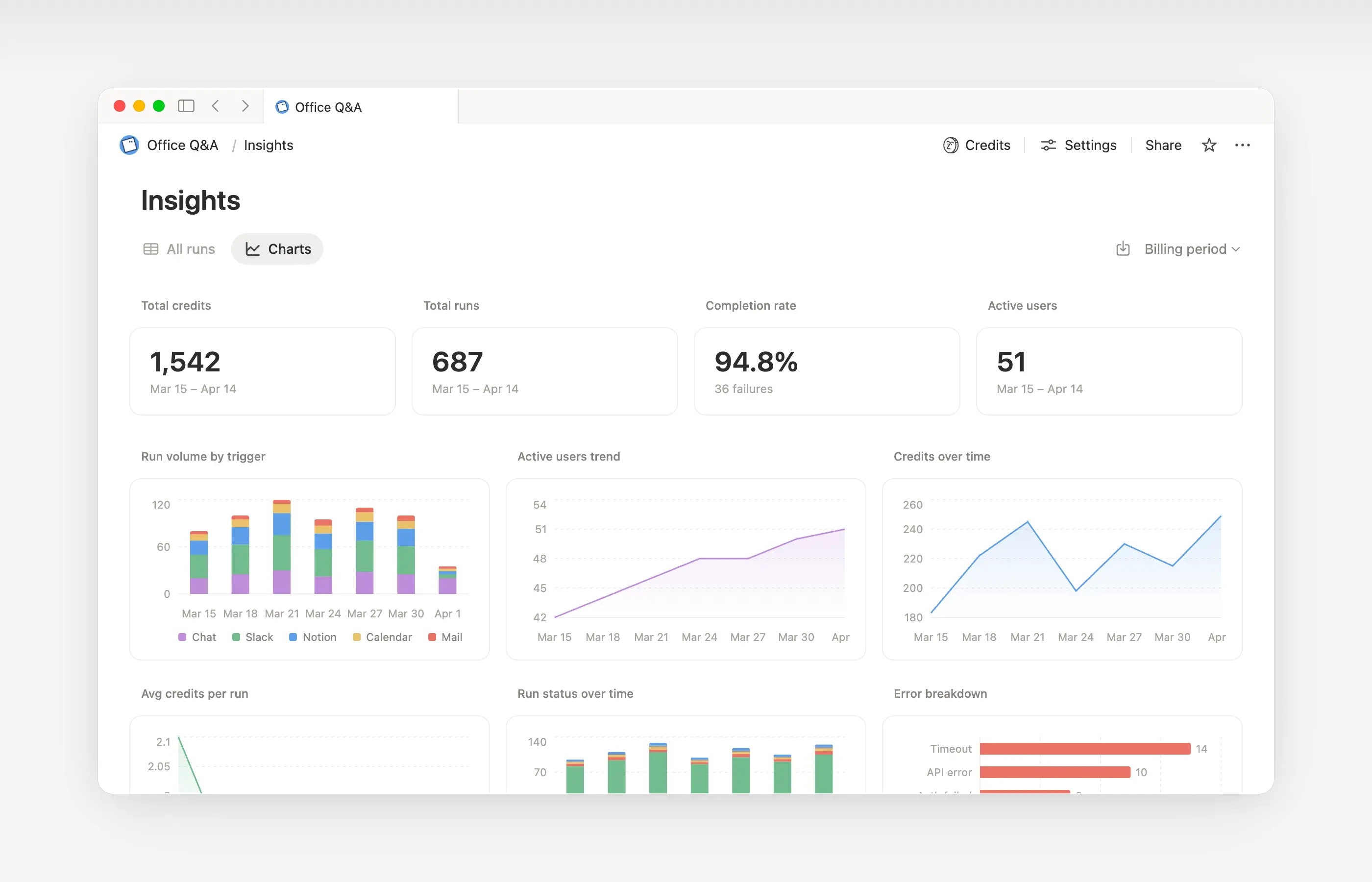
よくあるご質問(FAQ)に移動The Notion credits dashboard gives a clear view of how Custom Agents, Autofill, and Workers use Notion credits across the workspace. Use it to track usage, plan future credit needs, and manage ongoing spend. To access it, go to Settings → Access & billing → Notion credits.
Admins on Business and Enterprise plans can monitor usage in the dashboard. Custom Agent creators and Worker creators can also see workspace-level credit pacing. The table will show only the Custom Agents or Workers they've created.
In the dashboard, you can view:
Credit usage in real time.
Estimated usage through your monthly service date.
Agent-level runs and credit usage, so you can identify the agents driving spend and adjust them as needed.
Workspace members who are using credits past the usage allowance.
Trial credits from your account team. These appear as their own category, so you can track them separately from the credits you purchased.
If you manage multiple workspaces, you’ll also have a Notion credits dashboard in your admin console where you can track credit pacing and usage across your organization.
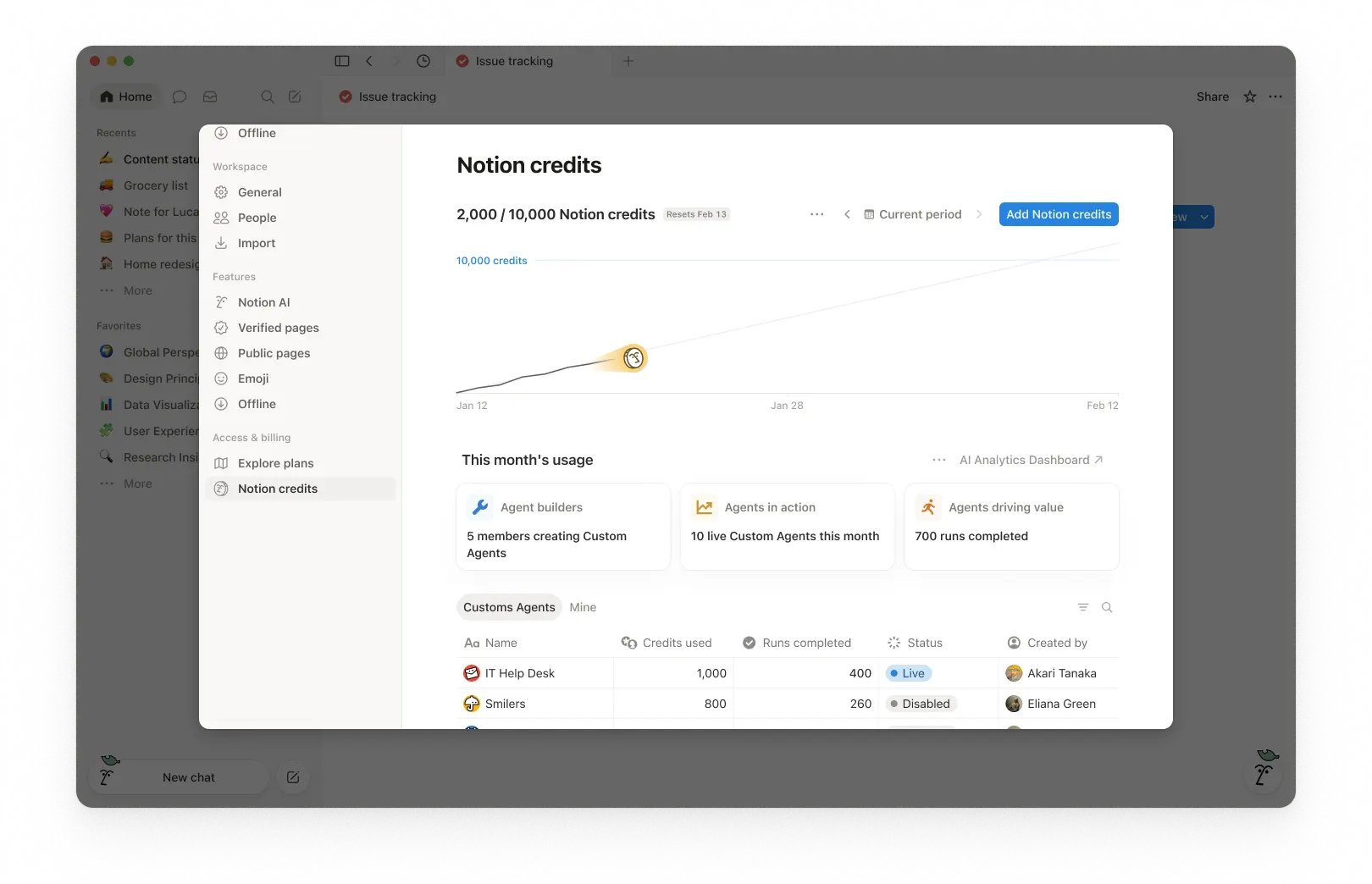
At the top of the dashboard, you’ll see the total Notion credits used for the selected period and your credits reset date. The selected period is based on your workspace’s billing cycle.
This gives you a quick snapshot of usage so far and when your monthly billing cycle ends.
In the top-right corner, use the period selector (for example, Current period) and navigation arrows to review past periods.
The usage chart shows credit usage over time:
Current shows your actual credits used so far.
Estimated projects where your usage is likely to land by the reset date if current patterns continue. The estimate is provided for informational purposes only and actual future usage may differ.
Use this to spot whether you’re pacing toward running out of credits before the reset.
Under This month’s usage, you’ll see adoption and activity metrics such as:
Agent builders: How many members are creating Custom Agents.
Agents in action: How many live Custom Agents are running during the period.
Runs completed: How many tasks agents have completed across your workspace.
The usage table is organized into tabs so you can filter by type.
All: Every Custom Agent, Autofill, and Worker in your workspace.
Custom Agents: Custom Agent spend only.
Autofill: Autofill spend only.
Workers: Worker spend only. Workers show a Free badge during the beta period.
Mine: Only the Custom Agents and Workers you created
For each item, the table shows:
Notion credits used
Runs completed
Status
Created by
By default, Worker spend is tracked separately from Custom Agent spend and isn't included in the main usage chart or total credit number. To fold Worker spend into the chart and total, select the three-dot menu ••• at the top of the dashboard and toggle on Include Worker spend.
If your account team has given your organization trial credits, here's how they work:
Trial credits appear in the Notion credits dashboard as their own category, separate from the credits you purchased. If your organization has a multi-workspace contract, you can also see them in the org console.
Admins get an alert when your organization has used 80% of its trial credits, and another when trial credits are fully used.
Unused trial credits don't carry over after the trial ends.
Admins can monitor credit usage and control how Custom Agents run so spend stays predictable.
Admins have several ways to manage credit pacing:
Visibility: Track usage and trends in the Notion credits dashboard.
Guardrails: Decide who can create agents (and set limits).
Control: Pause or switch off agents anytime to stop usage while you investigate or make changes.
Optimize: Fine-tune agents to reduce extra steps and improve efficiency.
Use the Notion credits dashboard to track usage over time and see which features are using the most credits. Notion also notifies admins when the workspace is approaching or has reached the credit limit, so admins have time to act.
When a member uses Notion credits beyond the usage allowance, their usage appears as an individual row in the credits dashboard. Admins can see which users are spending credits past the limit and how much they've used.
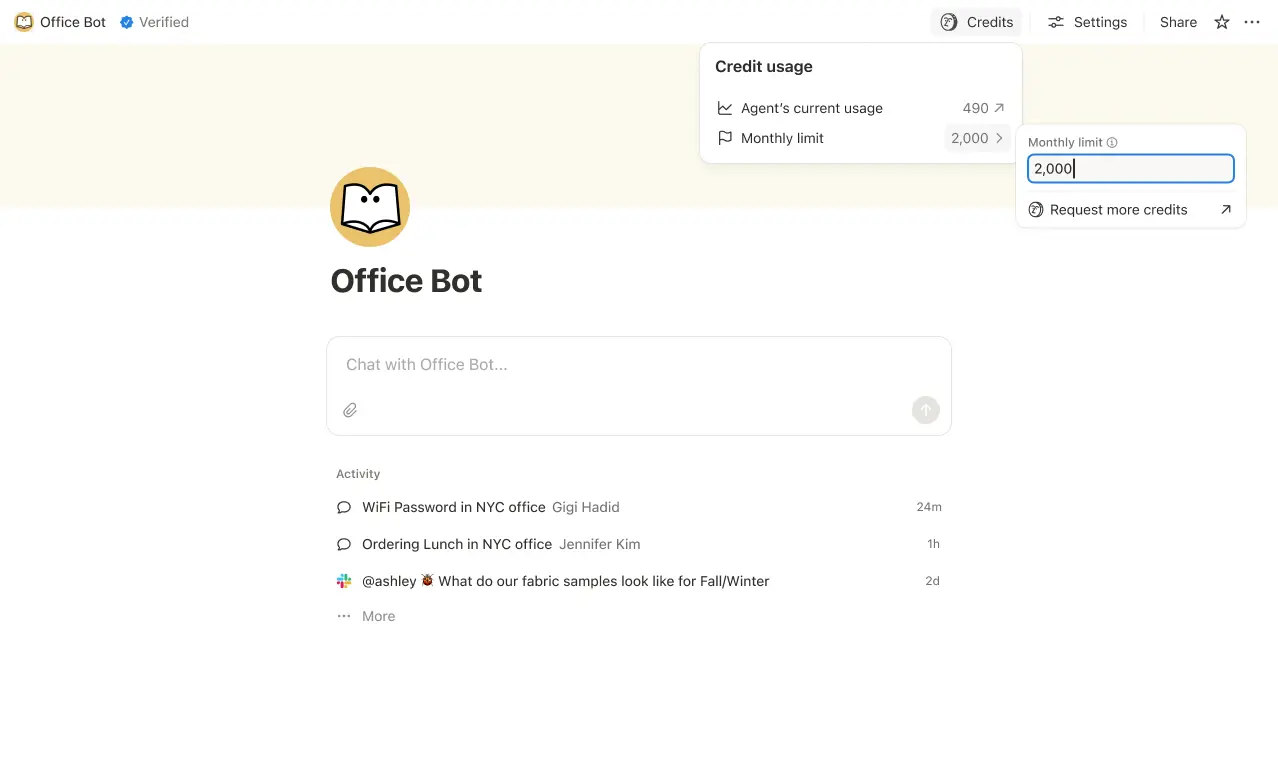
Set credit limits for individual Custom Agents so they pause when they hit a threshold. In some cases, an agent may go over the limit in order to complete an ongoing task. If a task is already running when it hits the cap, we let it finish before stopping new usage.
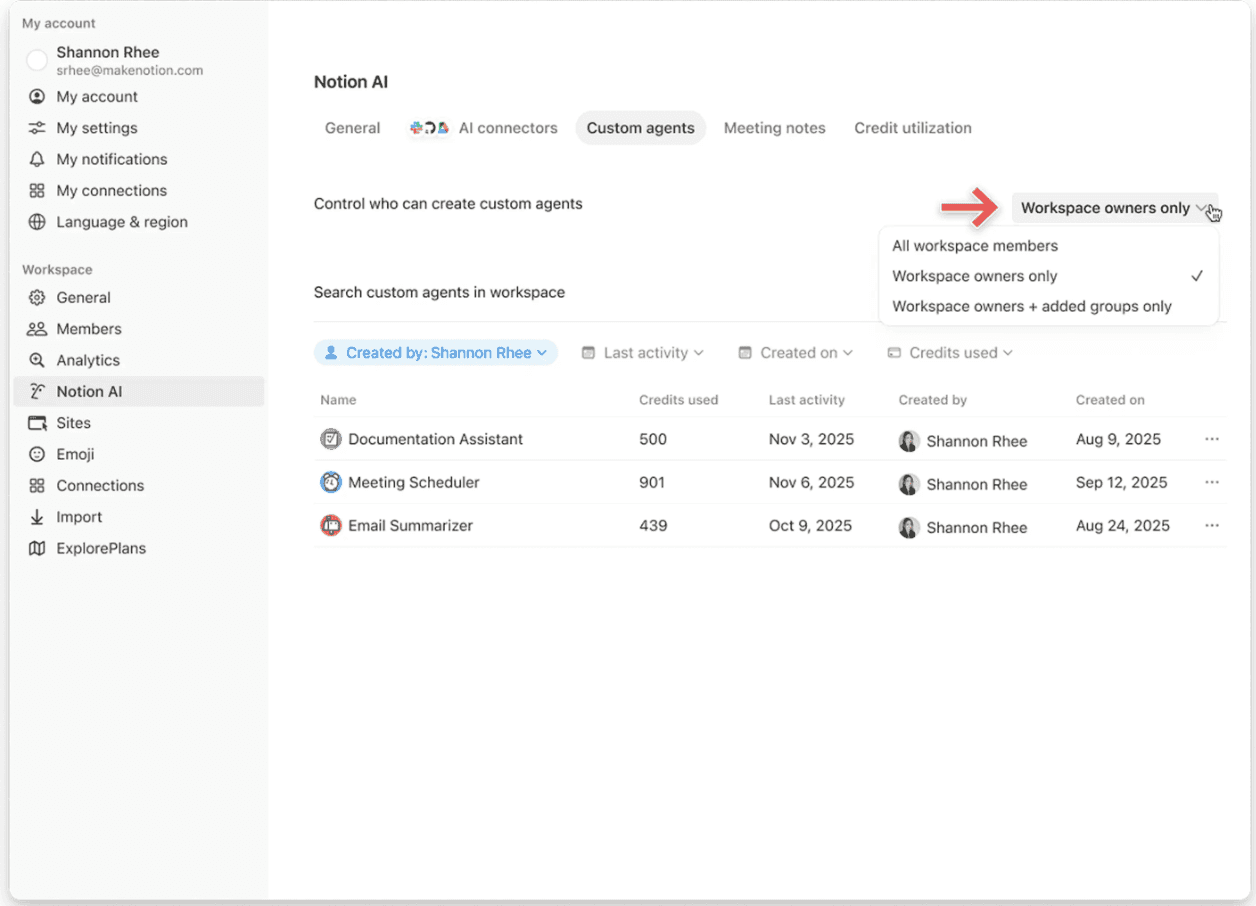
Control who can create Custom Agents (everyone, workspace owners only, or selected members).
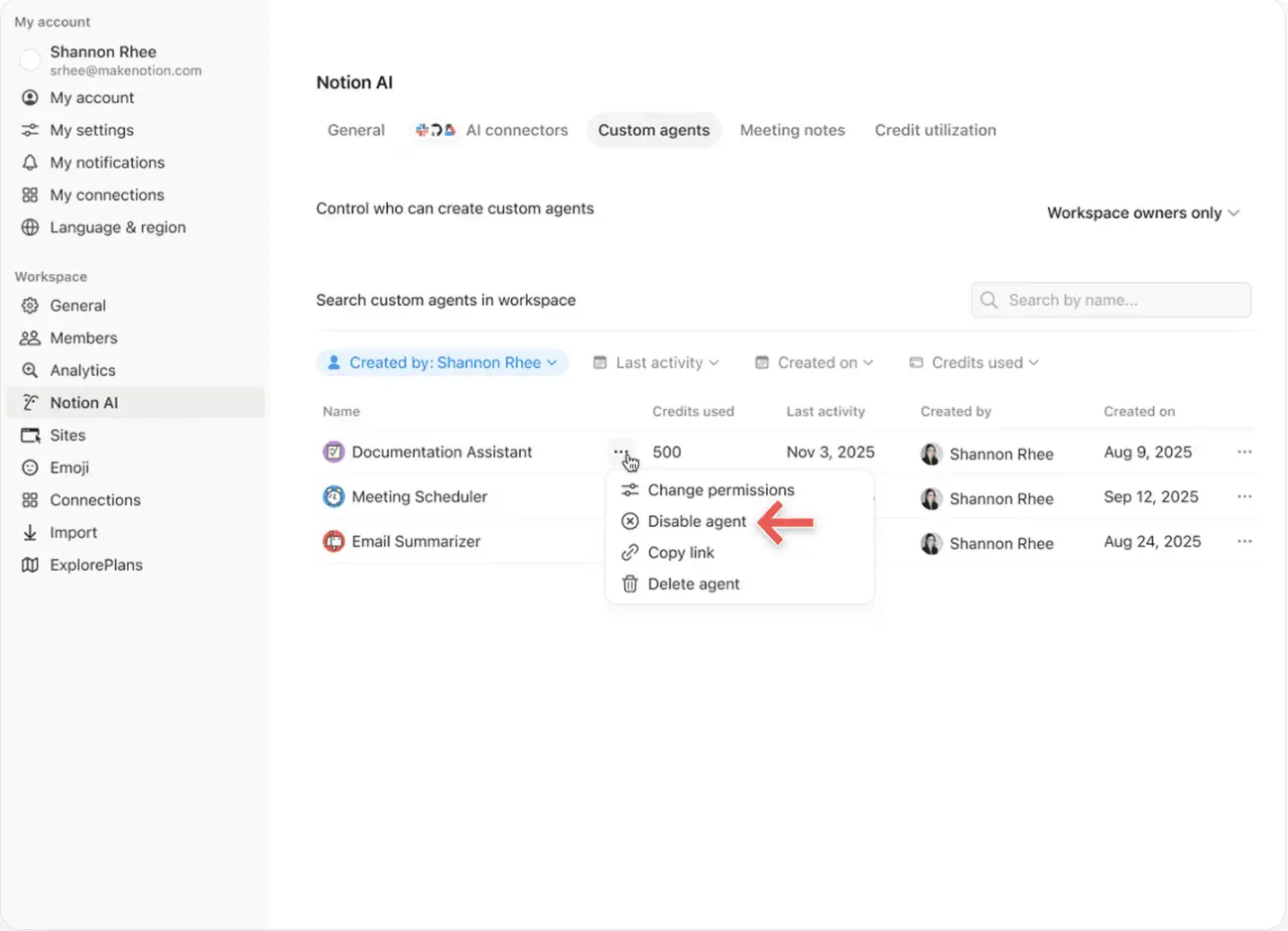
Pause or switch off a Custom Agent anytime to immediately stop credit usage while you review activity or adjust the agent.
Insights helps Custom Agent creators and workspace admins understand activity so they can make targeted updates that improve performance. Use Insights to spot runs that take extra steps, fail and retry, or use a more expensive model than the job requires. Then, update the agent’s instructions or settings so it runs more efficiently.
Open Insights directly within an agent to:
Monitor your Custom Agent’s activity and credit usage.
Identify runs that are more expensive than expected.
Review what models, tools, and triggers were used.
Find and fix failed runs so your agent works more reliably.
Learn more about how to use Insights to reduce costs and improve a Custom Agent →
Workspace owners can decide whether members can use Notion credits after hitting the usage allowance. When this is turned off, members who use up their allowance must wait for the rolling or monthly window to refresh. Learn how to manage this setting →

Learn what Custom Agents are and how they work.
Learn how Custom Agents access information, how sharing works, and what admins can control: Custom Agents sharing and permissions →
See more best practices on optimizing Notion credits and efficiency for Custom Agents in an admin’s guide to getting started with Custom Agents →
よくあるご質問(FAQ)
Notionクレジットポイントを使い切った後はどうなりますか?
Notionクレジットポイントを使い切った後はどうなりますか?
ワークスペース内のNotionクレジットが不足すると、カスタムエージェントは自動的に一時停止されます。クレジットがリセットされるか、管理者がクレジットポイントを追加するまで、実行は再開されません。
Notionクレジットを使い切る前に、管理者にはどのような通知が届きますか?
Notionクレジットを使い切る前に、管理者にはどのような通知が届きますか?
ワークスペースのNotionクレジット使用量が80%および100%に達した時点で、管理者にアプリ内通知(およびメール)が届きます。これにより、エージェントが自動停止してしまう前に、使用量を調整することが可能です。
Notionクレジットを追加購入する方法は?
Notionクレジットを追加購入する方法は?
管理者は、Notionクレジットを製品内またはアカウントチームを通じて購入できます。Notionクレジットの購入について詳しくはこちら。
月の半ばでNotionクレジットを変更する場合の仕組みは?
月の半ばでNotionクレジットを変更する場合の仕組みは?
月額サービス期間の途中でクレジットを増やした場合、追加分は現在のサービス期間ですぐに利用可能になります。次回の月額サービス開始日に、増額された定期クレジット料金が請求されます。
月額サービス期間の途中でクレジットを減らした場合、減額分は次回のサービス期間開始時に適用されます。それ以降は、毎月、減額された定期クレジット料金が請求されます。
アカウントチームと連携してNotionクレジットを購入している。年間Notionクレジットが含まれるビジネスプランまたはエンタープライズプランのアップグレード、展開する、または更新を、請求期間の途中で行った場合はどうなるか?
アカウントチームと連携してNotionクレジットを購入している。年間Notionクレジットが含まれるビジネスプランまたはエンタープライズプランのアップグレード、展開する、または更新を、請求期間の途中で行った場合はどうなるか?
未使用の前払い年間Notionクレジットに対して、次のいずれか少ない金額に相当する日割り計算されたクレジットが付与されます。
未使用の年間Notionクレジットの金額(米ドル)、または
サブスクリプション期間の残りの期間に対して日割り計算された年間Notionクレジットの料金
このクレジットは、現在のサブスクリプション期間が終了する前に、新しいビジネスプランまたはエンタープライズプランの注文書が現在の注文書に取って代わる場合に適用されます。Notionクレジットに現金価値はありません。すべてのクレジットは新しいプランに適用されます。
自動入力はNotionクレジットを消費しますか?
自動入力はNotionクレジットを消費しますか?
自動入力には、ベーシックとカスタムエージェントの2つのオプションがあります。
ベーシック自動入力機能はビジネスプランとエンタープライズプランに含まれており、Notionクレジットは消費されません。
カスタムエージェント自動入力では、カスタムエージェントの機能(より豊富なコンテキストの活用やより高度な推論など)を使用して実行されるため、Notionクレジットが消費されます。
プランをダウングレードすると、カスタムエージェントはどうなりますか?
プランをダウングレードすると、カスタムエージェントはどうなりますか?
Notionプランをフリープランまたはプラスプランにダウングレードした場合、既存のカスタムエージェントはすべてオフになりますが、削除はされません。カスタムエージェントのチャットページと設定を表示することはできますが、編集はできません。ビジネスプランまたはエンタープライズプランに再度アップグレードすれば、カスタムエージェントを継続して利用できます。
App StoreまたはGoogle Playでサブスクリプションを管理している場合、Notionクレジットを購入できますか?
App StoreまたはGoogle Playでサブスクリプションを管理している場合、Notionクレジットを購入できますか?
直接はできません。Notionサブスクリプションがモバイルアプリストア(Apple App StoreまたはGoogle Play)を通じて管理されている場合、Notion内からNotionクレジットを購入することはできません。
クレジットを購入するには、次の手順に従ってください:
モバイルアプリストアのサブスクリプションをキャンセルします。
直接notion.comでNotionプラン(AIが含まれるビジネスプランまたはエンタープライズプラン)にアップグレードします。
新しいサブスクリプションが有効になると、管理者は
設定→アクセスと請求→NotionクレジットからNotionクレジットを購入できます。
クレジットを購入する前に、新しいプランにAIが含まれていることを確認してください。Notionクレジットは、ビジネスプランおよびエンタープライズプランでのみ利用可能です。